Get help from Ozcan, the personal assistant
How to ask Ozcan, SmartClass’s personal assistant, how to do something in SmartClass, hand the conversation to the SmartClass support team as a support ticket, and find, close or delete your conversations.
This guide shows how to ask Ozcan, SmartClass’s personal assistant, how to do something in SmartClass, how to hand a conversation to the SmartClass support team as a support ticket, and how to find, close and delete your conversations. Ozcan answers from SmartClass Help and links to the Help topics it used.
Who does what
Each SmartClass installation decides at which of its schools the assistant is offered, and whether there it is offered to every signed-in user or only to administrative personnel, the administrator and manager accounts. Where it is not offered to you, AI support does not appear in the top bar. The SmartClass support team receives the conversations you hand to them and answers in the same conversation.
Important: An AI model writes Ozcan’s answers, so an answer can be wrong: check it on the page it describes before you rely on it. Your messages and images go to an AI service to be answered, so do not write personal information the question does not need, such as a citizen ID number, a phone number or an address.
1. Open the assistant
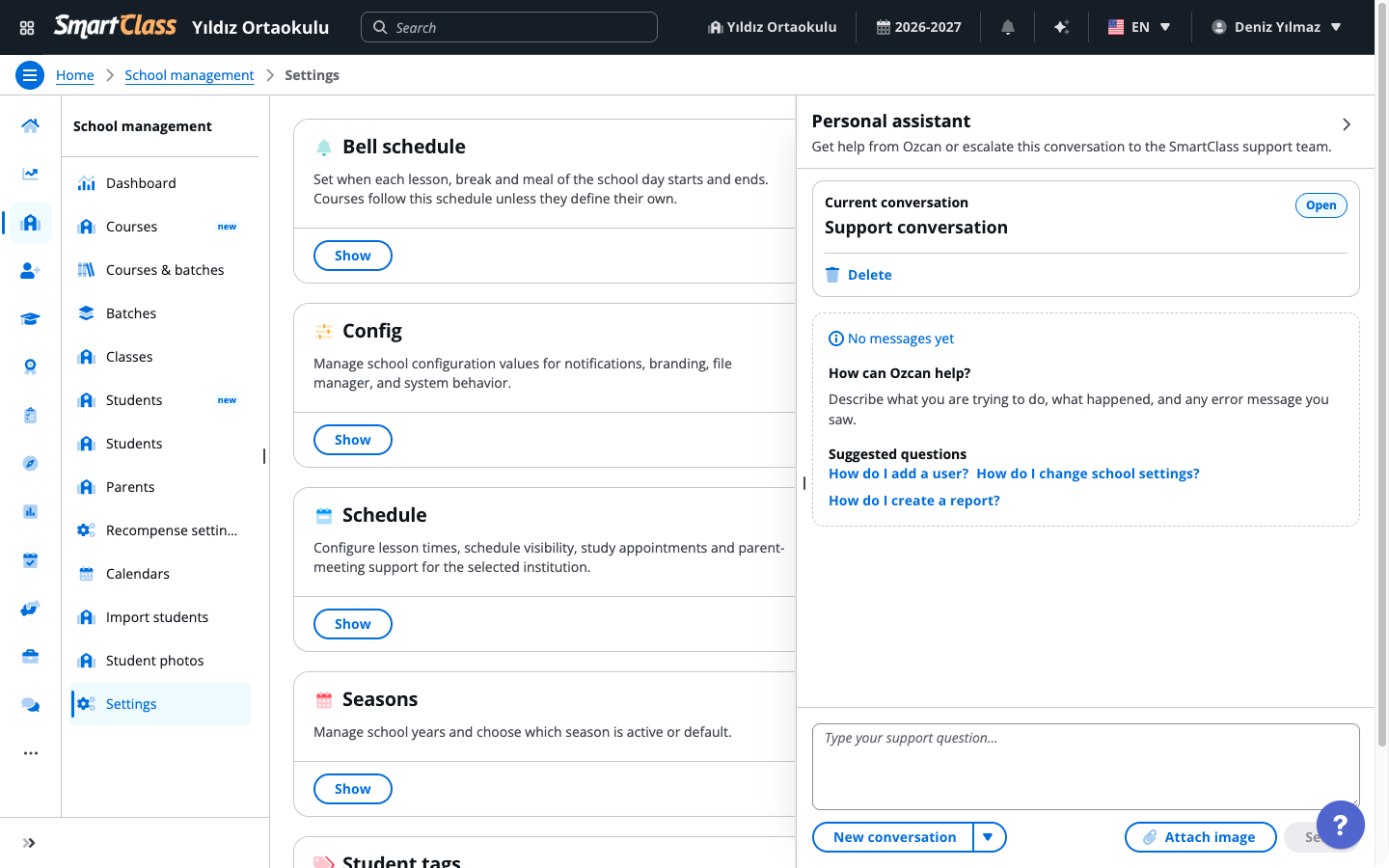
- On any page, choose AI support in the top bar, the button with the sparkles. The Personal assistant panel opens beside the page.
- A new conversation asks How can Ozcan help?. Tasks on this page lists the tasks of the Help topic for the page you are on, and Suggested questions lists common questions where the page has no such topic. Choosing one puts it in the message box without sending it, so you can change it first.
2. Ask a question
- Type your question where the panel says Type your support question… and choose Send. Say what you are trying to do, what happened and any error message you saw. The panel shows Thinking... until the answer arrives.
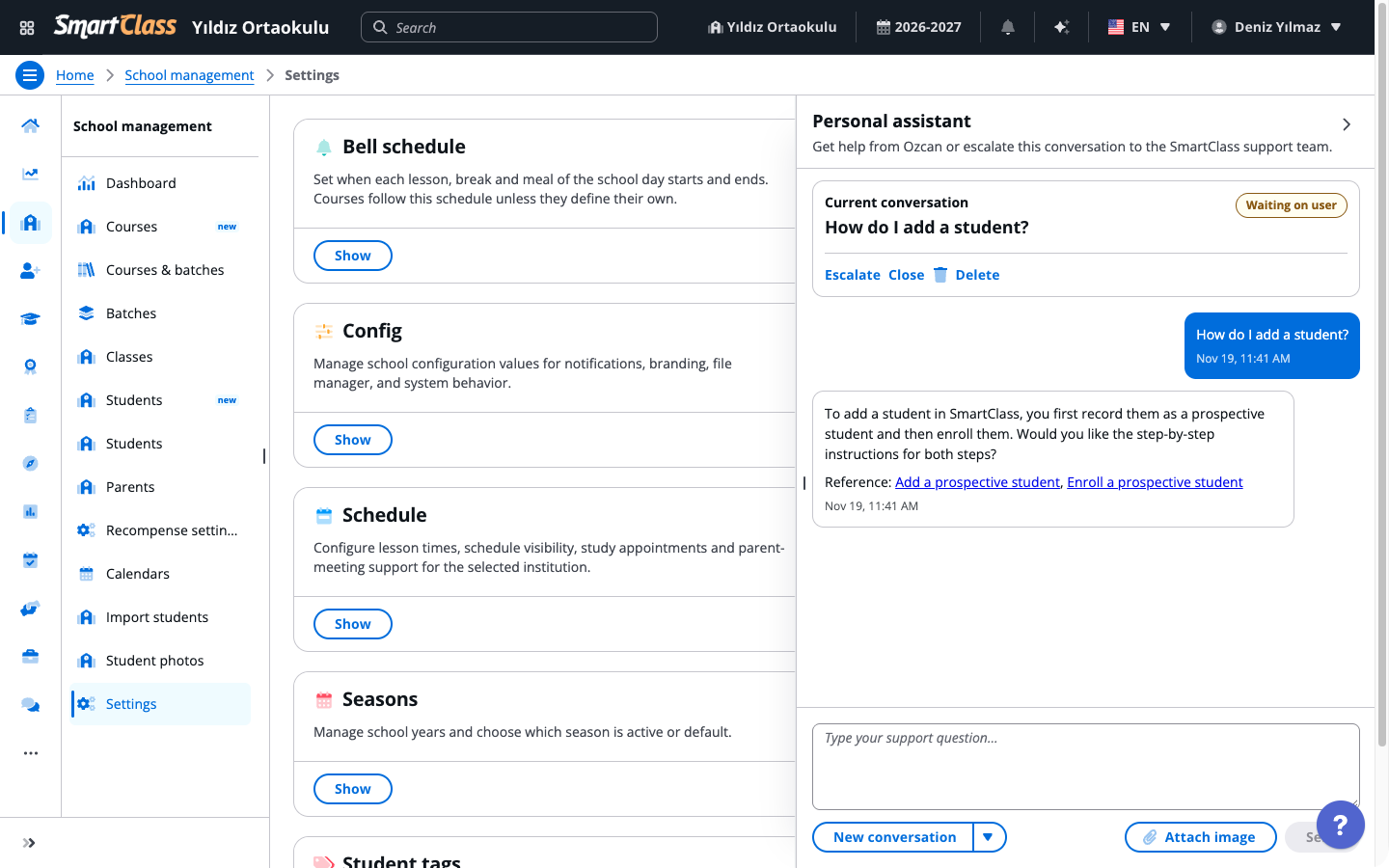
- Ozcan answers in the language SmartClass is showing you when you send the message. The Reference line at the end of an answer links to the Help topics it used; an answer without it does not rest on Help.
- To show what you see, choose Attach image and pick a JPEG, PNG or WebP screenshot smaller than 5 MB. Remove takes it off before you send.
Where the installation allows it, Ozcan can also read some of the information your account already sees, such as a timetable, attendance or grades, to answer a question about it. It only reads: it never saves, changes, sends or deletes anything in SmartClass for you.
3. Hand the conversation to the support team
- When Ozcan cannot help, choose Escalate in the conversation. It is offered once the conversation has a message, while its status is Open or Waiting on user.
- SmartClass creates a support ticket, the conversation’s status becomes Escalated, and Ticket ID shows the ticket’s number.
- From then on, each message you send in this conversation goes to the ticket, and the support team’s replies appear in it under SmartClass Support Service.
- When your issue is solved, open the menu beside the ticket’s status, choose Resolve ticket and confirm. The conversation closes and stays read-only.
Ozcan suggests Escalate at once when you ask for a person, and for a wrong charge, a refund, a privacy request or a compromised account. The support team sees your name and school, the conversation’s title, your latest message, up to ten recent messages and every message you send after that.
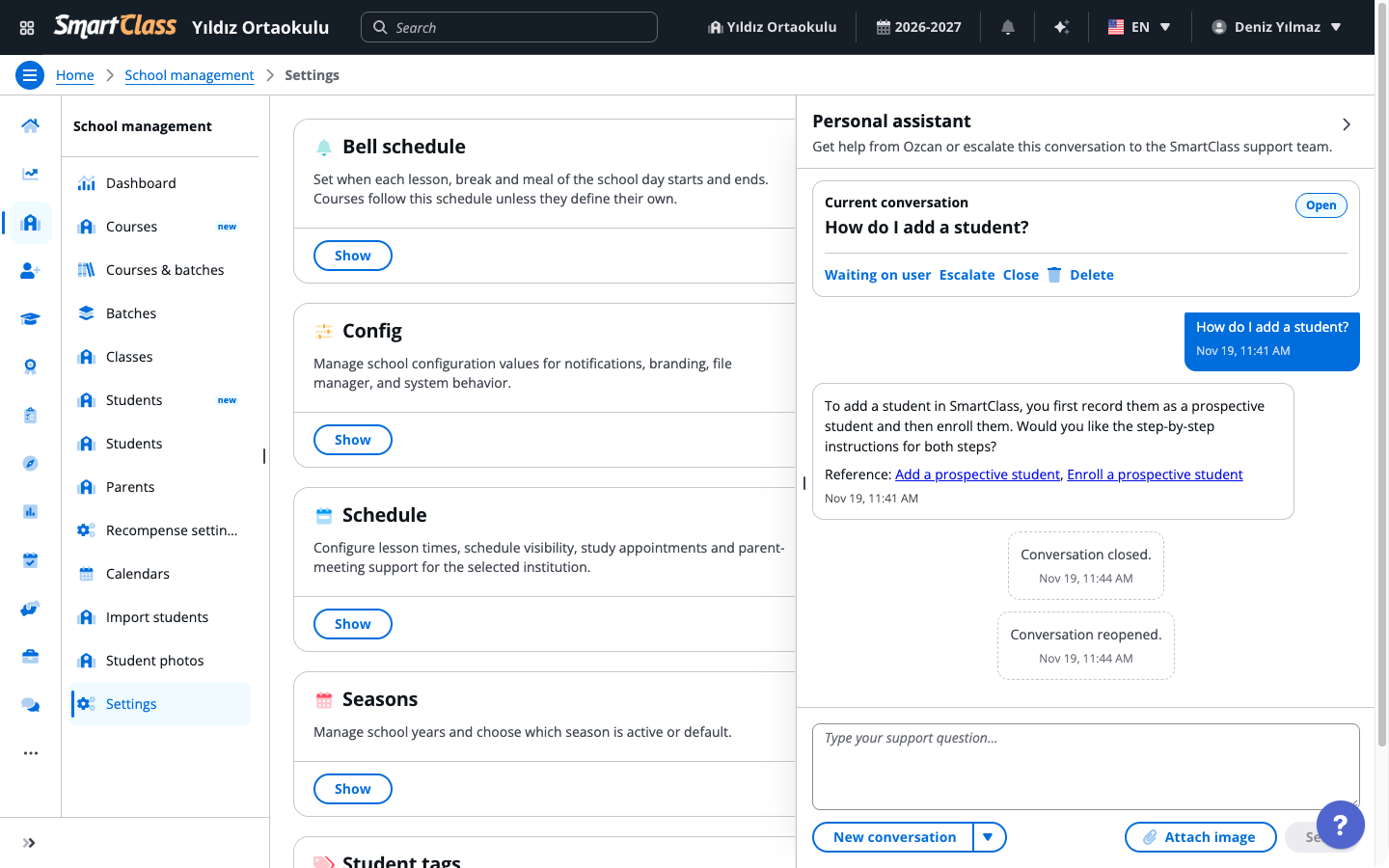
4. Find, close or delete a conversation
- Open the menu beside New conversation and choose Conversation history to see your conversations, the most recently active first. Choosing one opens it, and New conversation starts an empty one.
- In a conversation that was never escalated, Close marks it closed when you no longer need it, and Mark open opens it again.
- Choose Delete in the conversation and confirm with Delete. Its messages and images are deleted from SmartClass at once, and this cannot be undone. An escalated conversation’s ticket stays with the support team.
No one else can open your conversations in the panel. A conversation you do not delete is deleted automatically a number of days after its last message, which the panel states.
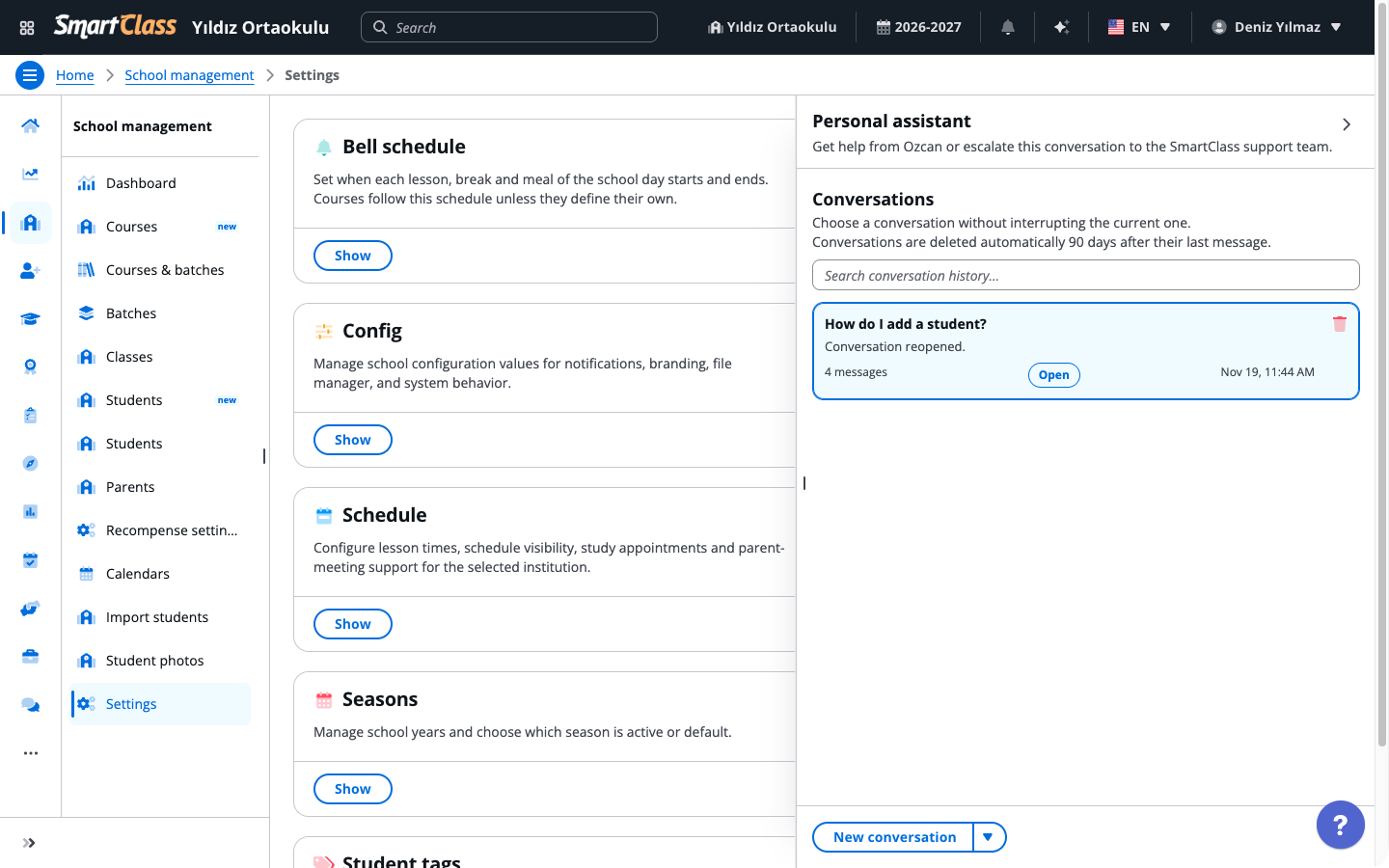
5. When something does not work
- AI support is not in the top bar: the assistant is not offered to your account at this school.
- You have reached the limit of messages you can send the assistant in an hour. Try again later. Your message was not sent and is still in the message box; send it again later. Messages in an escalated conversation do not count.
- SmartClass support is temporarily unavailable appears instead of a conversation: wait a moment and open the panel again.